
Table of Contents
- Description
- The Phish Alert Button
-
Using the PAB in the Microsoft Outlook Mobile App for Android
-
Using the PAB in the Microsoft Outlook Mobile App for Apple iOS
Description
Phishing is a real part of our world and while we do everything on our side to prevent them from getting to you, there will be times they get through.
!! DO NOT CLICK ON ANY LINKS OR OPEN ANY ATTATCHMENTS IN THE EMAIL !!
This does not mean clicking on the email to see the email, but any links within the body, images or files attached to email. If you do, inform IT immediately so precautionary measures can be taken.
The Phish Alert Button
The best and safest method method for informing us of potential phishing emails is to use the phish alert button. Forwarding an email to IT and asking "Is this safe?" can potentially spread malicious files. The Phish Alert button will allow us to safely evaluate the email to see if it is safe. It is scanned for viruses by 60+ virus scanners and is run through AI trained on malicious emails.
Using the Phish Alert Button in Outlook:
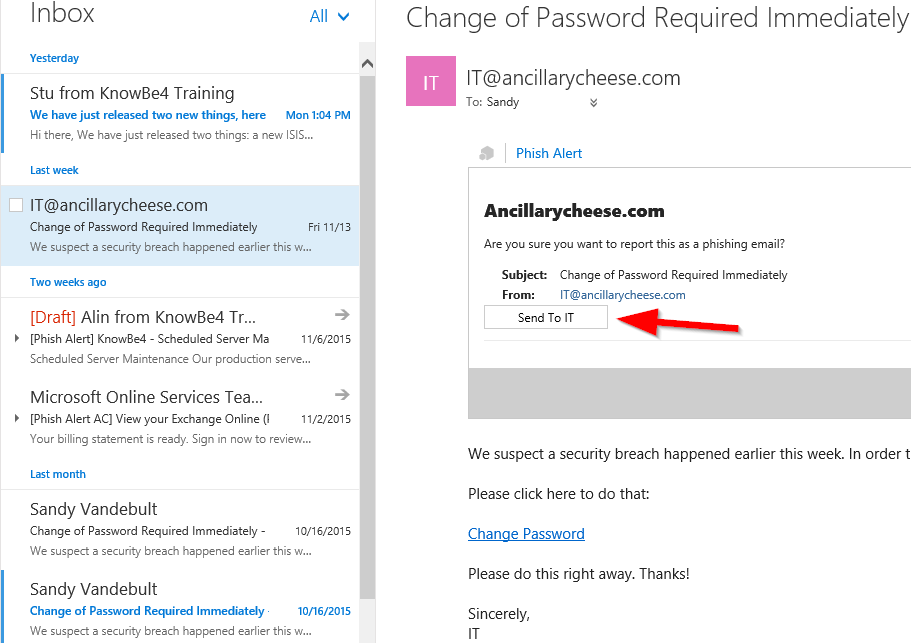
- Click the Phish Alert button to open a drop-down screen.
- A prompt will ask you if you want to report the email as a phishing email. Click the Send To IT button to report the email.
Note:
The email you report will be forwarded to an email address designated by your organization and then deleted from your inbox. If you report an email in error, then you can retrieve the email from your Trash folder or your Deleted Items folder.
Using the PAB in the Microsoft Outlook Mobile App for Android:
- Open the email that you would like to report.
- Click the vertical ellipsis icon (...) at the upper right corner of the email. Check the rest of the screen if you do not see the button in this location.

- Click the Phish Alert icon.

- In the pop-up window that opens, click Phish Alert to report the email.

- After you click Phish Alert again, a message will display to confirm that you reported the email. This message will tell you if the email you reported was a simulated phishing attack or if the email will need to be reviewed by your IT team. To close this message, click Ok.

Using the PAB in the Microsoft Outlook Mobile App for Apple iOS:
- Open the email that you would like to report.
- Click the ellipsis icon (…) at the upper right corner of the email.

- Click the Phish Alert icon.

- In the pop-up window that opens, click Phish Alert again to report the email.

- After you click Phish Alert again, a message will display to confirm that you reported the email. This message will tell you if the email you reported was a simulated phishing attack or if the email will need to be reviewed by your IT team. To close this message, click Ok.

Comments
0 comments
Please sign in to leave a comment.